Try Out Before Subscription
You may try the StockTake app before make any decision. The demo data will be reset every 1 hour and some feature restricted.
FrontEnd Smartphone
Click this link using smartphone or tablet.
BackEnd Website
Click this link using laptop or PC.
Username: admin
Password: admin
Complete Guide
AutoCount Stock Master Report V1.9 V2.0
AutoCount Stock Master Report (Include Alternative Item Code) V1.9 V2.0
Quick Start to try demo
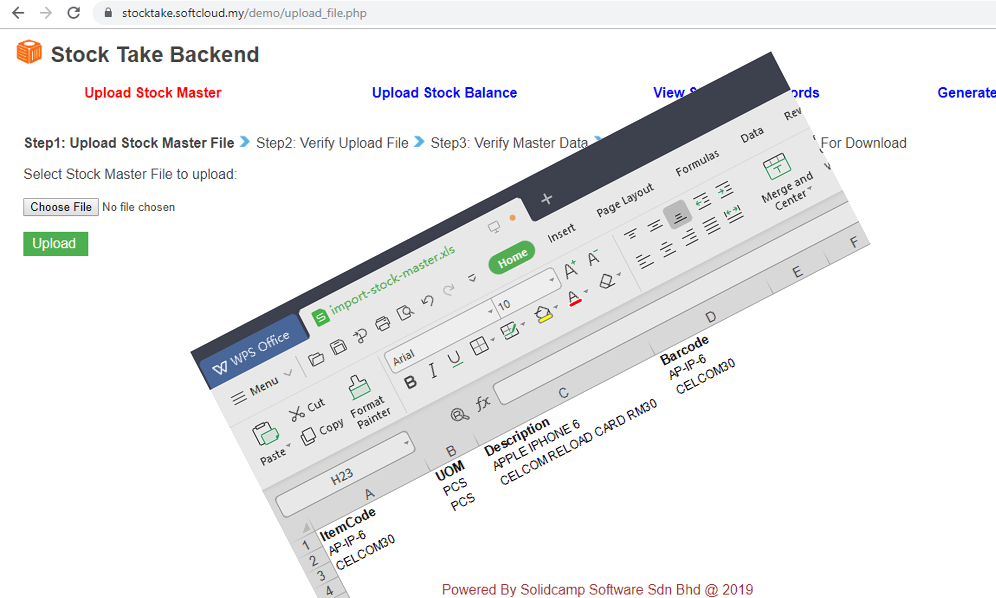
Step 1. Download the Import Stock Master excel file
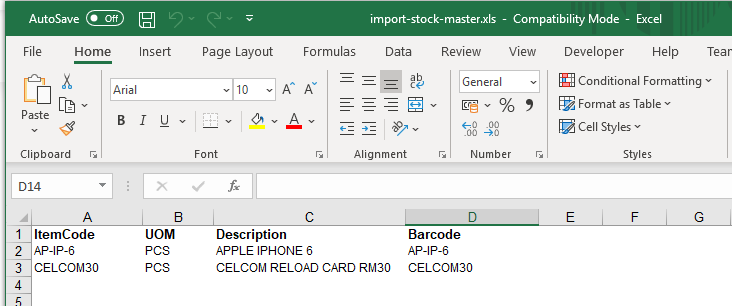
Step 2. Open the downloaded "Import Stock Master" file with Microsoft Excel or other equivalent spreadsheet program.
fill in the ItemCode, UOM, Description & Barcode data start from row no.2 (note: Do not change anything for row no.1)
after finish edit then save the excel file.
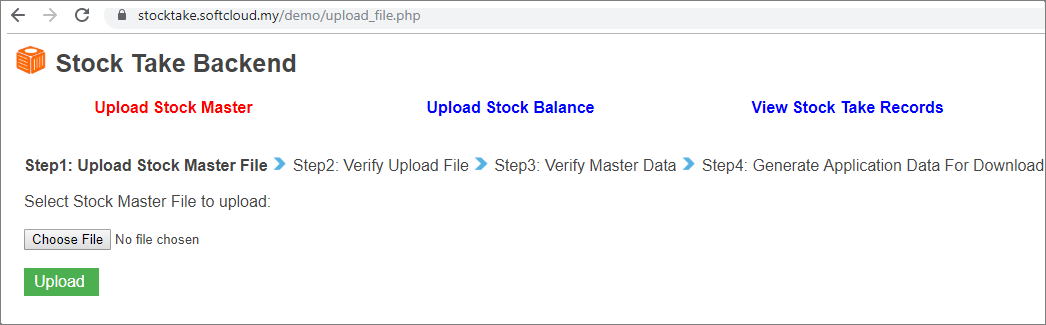
Step 3. Open the URL BackEnd Website with web browser. Login with username and password: admin
Step 4. Click "Upload Stock Master" then click "Choose File" to browse the "Import Stock Master" excel file that you edited
and follow the wizard to upload data into system.
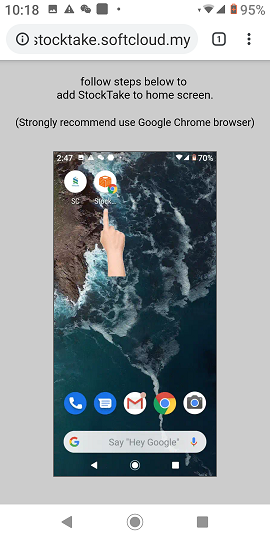
Step 5. Open the URL FrontEnd Smartphone with your smartphone web browser (recommend google chrome).
follow steps illustrated to add StockTake to your home screen.
Step 6. Tap the StockTake shortcut added in your FrontEnd Smartphone homescreen.
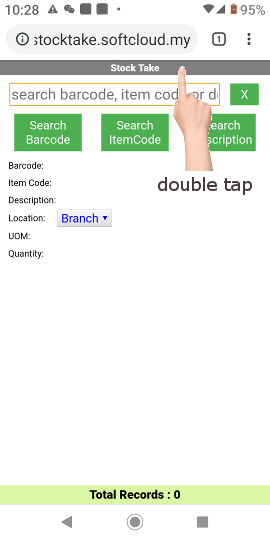
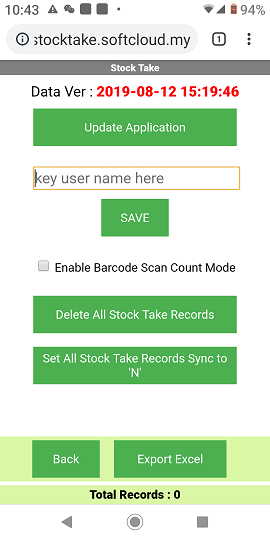
Step 7. To make sure stock master data imported and version correct, quick double tap StockTake title bar to enter setting page.
Data Ver: is the last date time upload stock master or edit location in backend website.
you may tap "Update Application" to update if incorrect.
you may key user name in username text box in order to trace who done the stock take after upload.
tap "Save" button to save username and tap "Back" button to return StockTake main page.
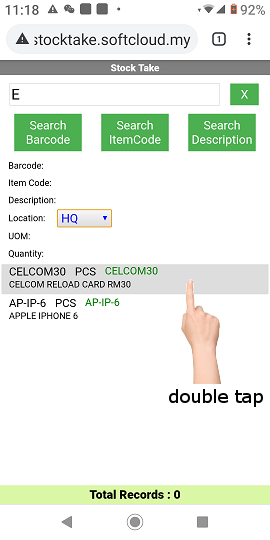
Step 8. Select the Location first then tap the search text box and enter keyword to search.
currently support 3 types search. (1) Barcode, (2) Item Code, & (3) Description.
if search result more than 100 records, only first 100 records show.
you may scroll up & down to search from result list and quick double tap to select correct stock item.
you may use barcode scanner to scan stock item barcode if available.
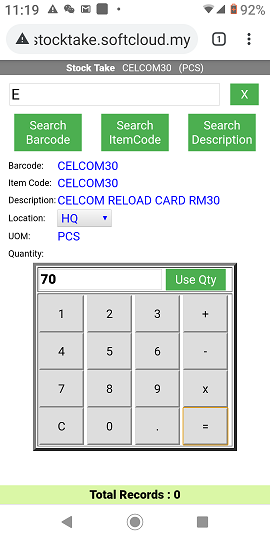
Step 9. After select correct stock item then tap the quantity text box to enter stock take quantity.
you may use in-bulit calculator to have simple plus formula (ex: 50 + 20 =).
tap "Use Qty" button to confirm then tap "Save" button to save stock take record.
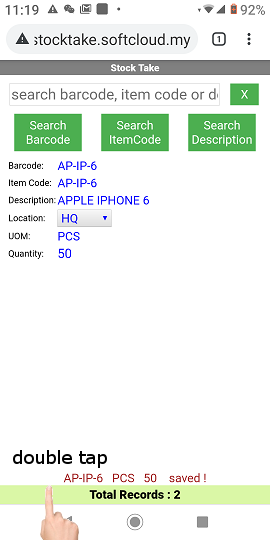
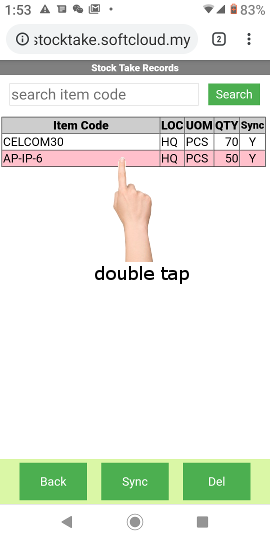
Step 10. After finish stock take, you may quick double tap record bar to check stock take records.
Step 11. You may find stock take record by enter part of item code or description.
you may quick double tap one record row (selected row background colour become pink) then tap "Del" button to delete.
tap the "Sync" button will make those sync flag "N" stock take records start sync to cloud database. (internet required)
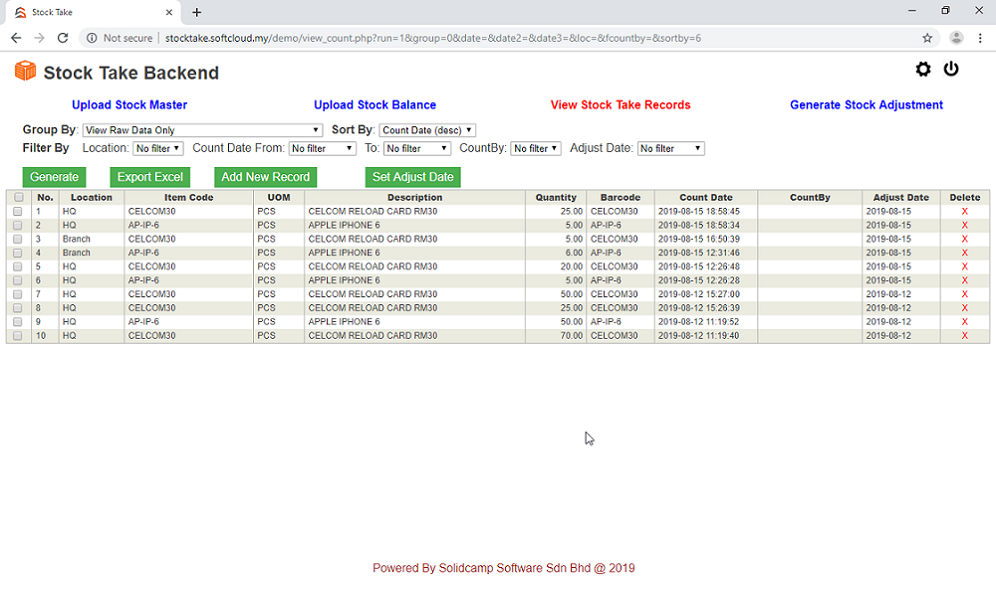
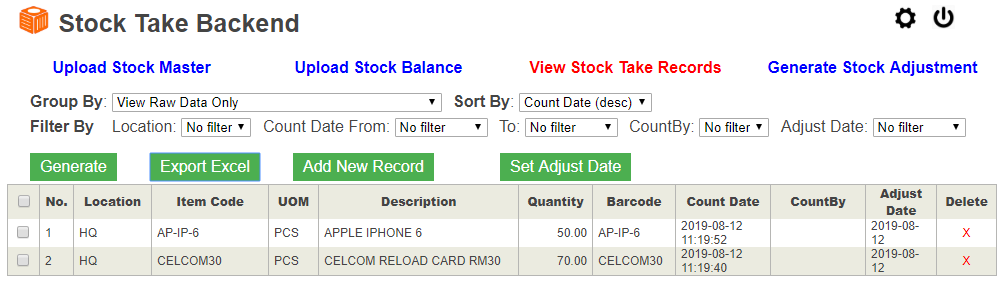
Step 12. Go back to BackEnd Website, click "View Stock Take Records". You will see the uploaded stock take records.
you may do filter, merge same item code records, merge different date records and other functions.
you may also key in stock take records manually by clicking "Add New Record" button.
finally, you may clicking "Export Excel" button to export on-screen records to excel file.
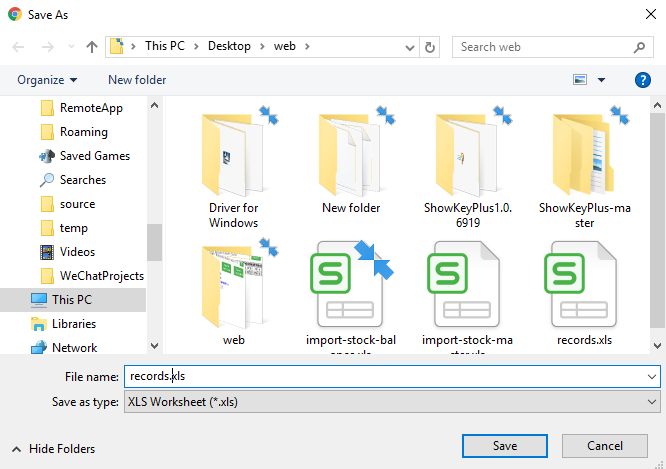
Step 13. Click "Save" button to save the excel file.
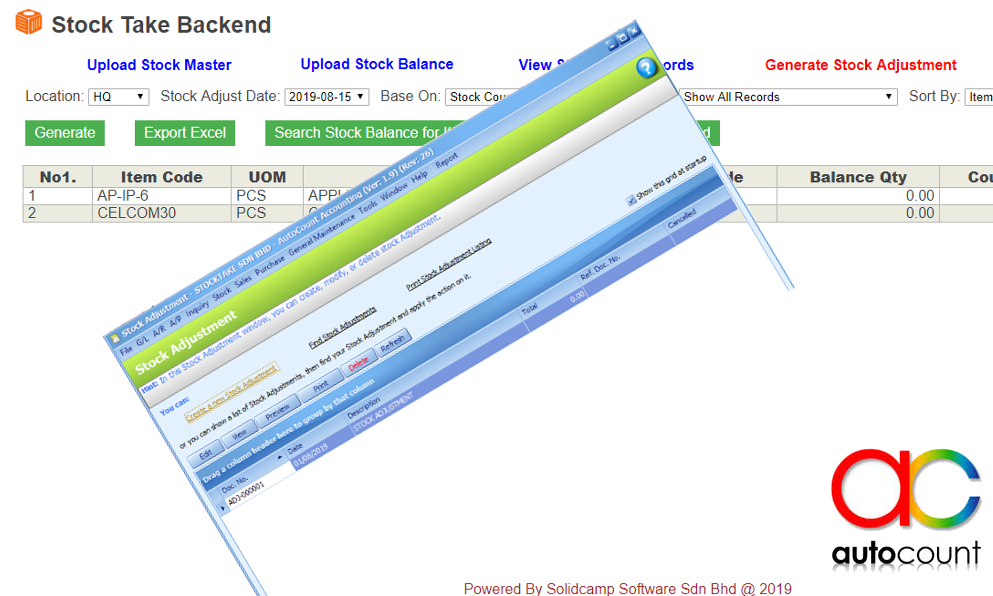
Note: besides, you may also upload stock balance excel file to compare stock take record in order to generate stock adjustment.
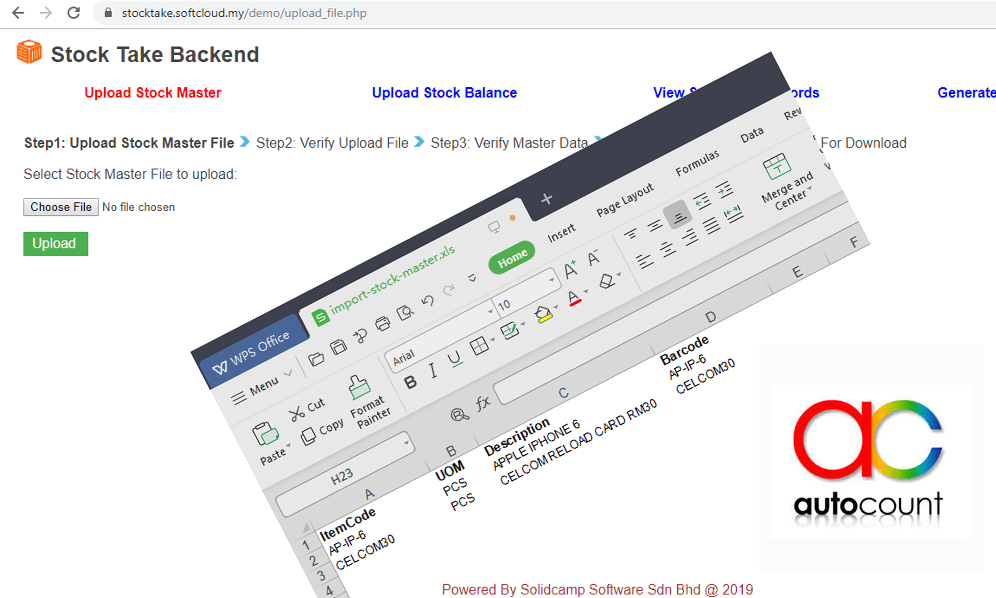
For AutoCount Accounting users, you may download report (.art) design file to generate Import Stock Master file.
To discover more details, you may download Complete Guide for review.